





Raspberry Pi has become an affordable yet powerful tool in the world of PCs. Easily embedded, simple to set up, and very flexible, you see Raspberry Pi single board computers in a wide variety of systems.
Developer Blog
27/06/2025
by Kvaser
Installing Linuxcan and Linux Drivers on a Raspberry Pi PC
Kvaser Drivers for Linux and SDK can be installed on installed on Raspberry Pi OS. This will allow you to add Kvaser hardware to your Raspberry Pi system. The installation process is similar to that of ARM- based Linux PCs, but there are a few key differences. In this article we will look at installing drivers for a regular and Dynamic Kernel Module (DKMS) installation.
The first step is to prepare the Raspberry Pi Operating System. Start by enabling source code packages by uncommenting deb-src in the sources and use “sudo” to make sure the command is run with admin rights as seen below:
%sudo sed -i ‘s/^#deb-src/deb-src/’ /etc/apt/sources.list.d/raspi.listNext, you want to install build tools and kernel headers, and you also want to make sure that your kernel headers are up to date on your installation.
%sudo apt update
%sudo apt install build-essential raspberrypi-kernel-headers
At this point, if you haven’t done so already, you will need to download the Kvaser Drivers and SDK for Linux, available here. In a Terminal window, you will want to unpack the file with this command:
%tar -xzf linxuxcan_X_XX_XXX.tar.gzThe program tar is used to extract a compressed tar file. The command “x” is to extract, command “z” is to enable compression for gzip (since this file has been compressed and needs to be uncompressed) and command “f” tells tar that the next argument is the file name of the archive. The X_XX_XXX is the version number of the drivers and SDK you downloaded.
Open the directory to “linuxcan” inside the directory where you unpacked the .tar.gz file. Once you are inside the “linuxcan” directory, run the :
%make
%sudo make install
By default, the PCIe and Virtual CAN drivers are not installed. This is because you may not want Virtual CAN or PCIe drivers loaded on startup, especially if you do not plan on using them. They are one less item to load when device starts up if they are not needed.
If you would also like to install and load Virtual CAN and PCIe drivers, you will need to run
%sudo make load If you are using an older board, one that doesn’t support PCIe, you will want to use the`-E’ argument to `sudo’ This will preserve the environment variables. In our case we need the environment variables `KDIR’ and `KV_NO_PCI’ in case you have issues with an install on a board that does not have PCIe.
$ sudo -E make install Using Dynamic Kernal Module Support (DKMS)
If you want to use Dynamic Kernal Module Support (DKMS) so that you don’t have to reinstall drivers when the kernel is updated, you can follow many of the same steps.
After making sure the Raspberry Pi Header are up to date, you next want to install DKMS.
%sudo sed -i  ‘s/^#deb-src/deb-src/’ /etc/apt/sources.list.d/raspi.list
%sudo apt update
%sudo apt install build-essential raspberrypi-kernel-headers
%sudo apt install dkms
This command will download and install DKMS package on your system. When this completes, run this command to install the DKMS compatible drivers:
%make dkms
%sudo make dkms_install
Overall, installing drivers on a Raspberry Pi device is the same as on any other Linux installation, with the exception of making sure that kernel headers are correct. In addition to being able to install Linuxcan, you can also use SocketCAN on a Raspberry Pi. (note: Installing drivers on a PC will blacklist SocketCAN drivers in order to avoid conflicts. This is also true for when you install Linuxcan on other Linux PCs)
How can this help you?
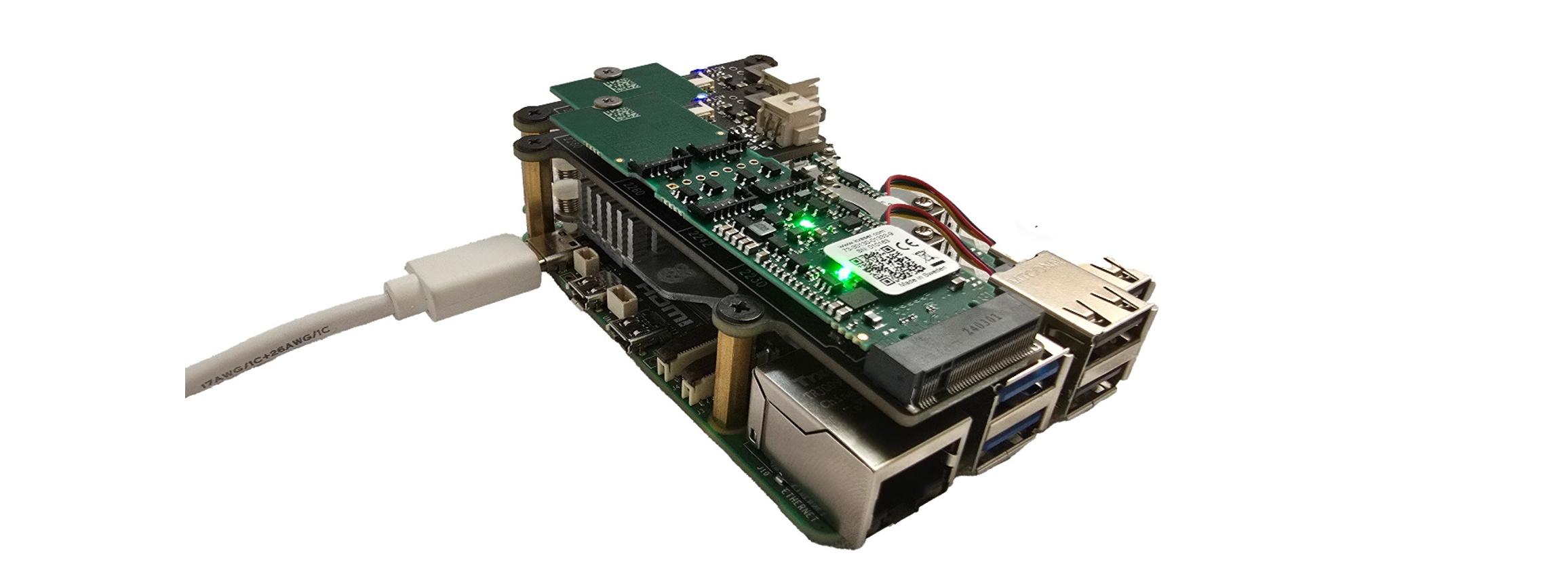
Single board computers are becoming more and more popular in AI and embedded systems. Being able to install Kvaser drivers on such systems opens the door for using Kvaser products in new and interesting environments. You can also install Kvaser CanKing 7 on an ARM-based Linux system and create your own single board CAN monitoring system. You can also add a HAT to add M.2 functionality to your Raspberry Pi and use the Kvaser M.2 PCIe 4xCAN board for on-board functionality.


 1...2...3...