




CanKing 7
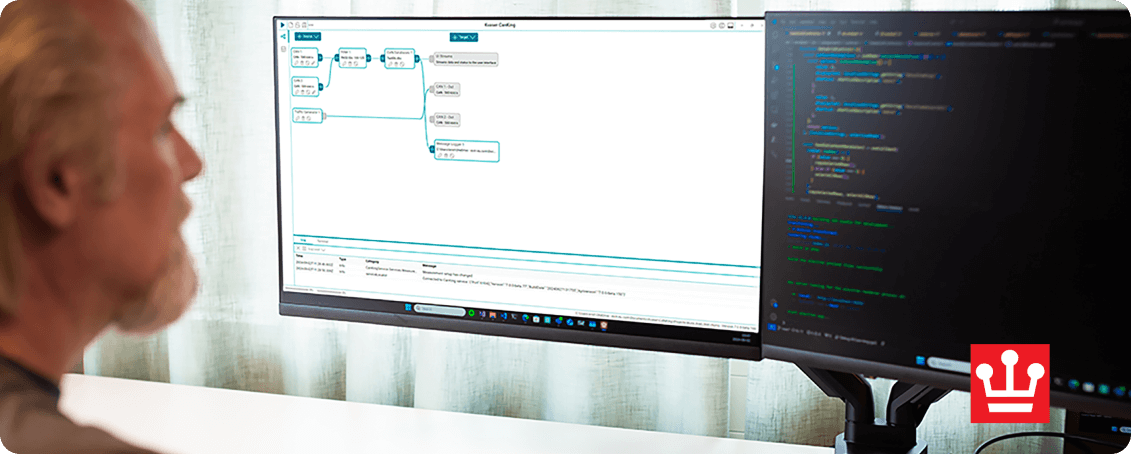
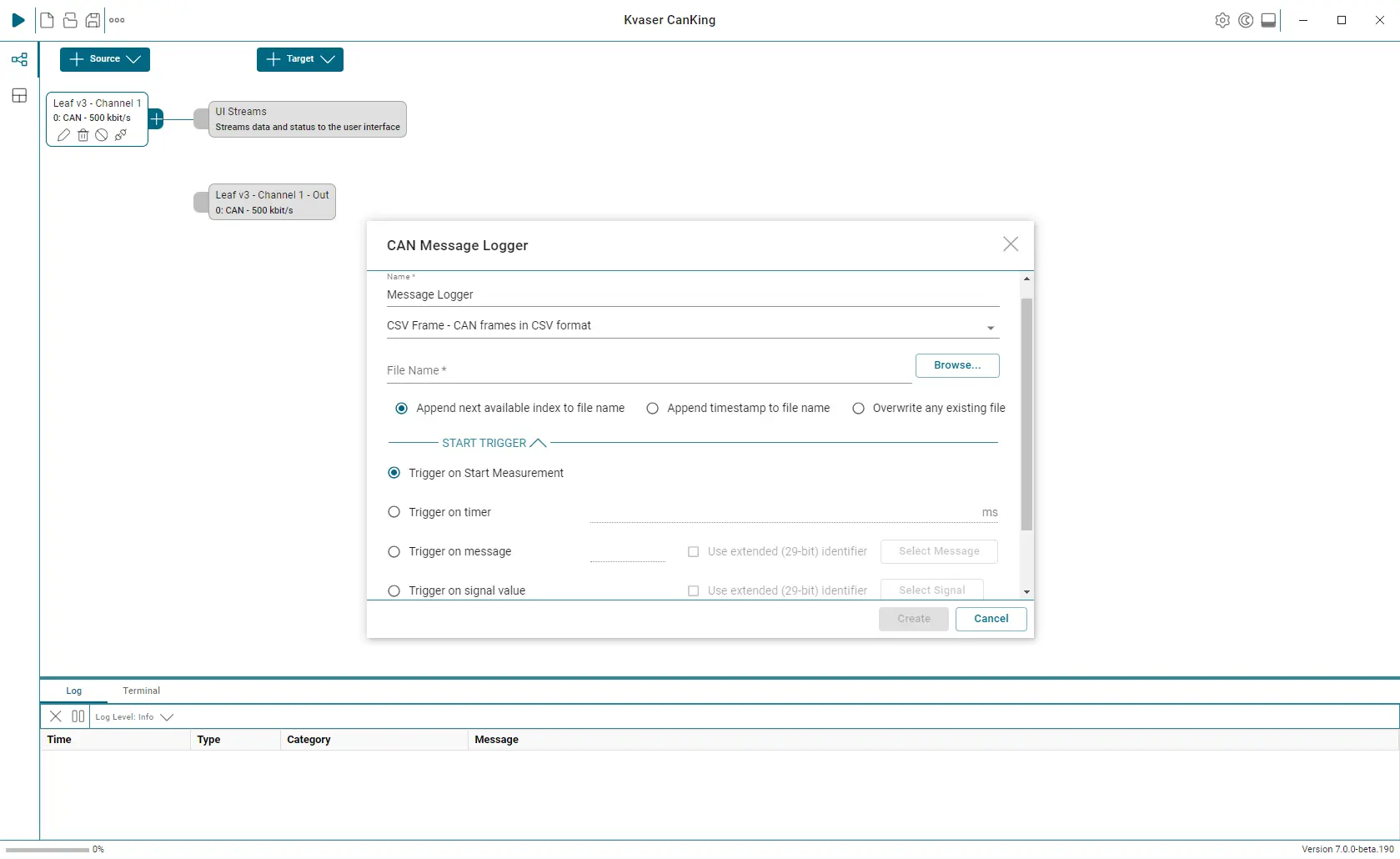
CanKing 7 is a free, general-purpose CAN and LIN bus analysis software that is compatible with all Kvaser CAN interfaces, Kvaser LIN interfaces, Kvaser Hybrid CAN/LIN interfaces, and the Kvaser virtual CAN bus. With an intuitive graphical measurement window, users can easily set up filtering, traffic generation, and logging with triggers on received messages or specific values. Available on Windows (x64) and Linux (x64 and ARM). The functionality of CanKing 7 can also be expanded through CanKing extensions.
CanKing
Kvaser CanKing 7 for Windows x86-64
CanKing 7 is Kvaser's free, general-purpose CAN and LIN bus analysis software that is compatible with all Kvaser CAN and LIN interfaces.
7.6.0
CanKing
Kvaser CanKing 7 for Linux amd64
CanKing 7 is Kvaser's free, general-purpose CAN and LIN bus analysis software that is compatible with all Kvaser CAN and LIN interfaces.
7.6.0
CanKing
Kvaser CanKing 7 for Linux arm64
CanKing 7 is Kvaser's free, general-purpose CAN and LIN bus analysis software that is compatible with all Kvaser CAN and LIN interfaces.
7.6.0
Latest News About CanKing 7
CanKing 7.6 introduces CanKing Service for remote and headless operation. Users can now connect to CanKing Service remotely through the graphical or command-line interface on Windows and Linux systems.
New functionality introduced with CanKing 7.6:
• Application additions: Remote connection to the CanKing service (from GUI as well as Command Line Interface), Extensions view
• Message Trace updates: Auto-fit all columns, Column filters
• Other workspace views: LIN Periodic Send
CanKing 7 Key Features
• Real-time bus monitor
• Send messages
• Generate Error Frames
• Supports CAN FD (ISO and non-ISO)
• Log to File
• Filter Messages
• DBC Support
• Dark Mode
• Command Line Interface
• Support for LIN and LDF files
• Added a J1939 protocol interpreter
• Log file replay capability
• Remote operation supported via CanKing Service
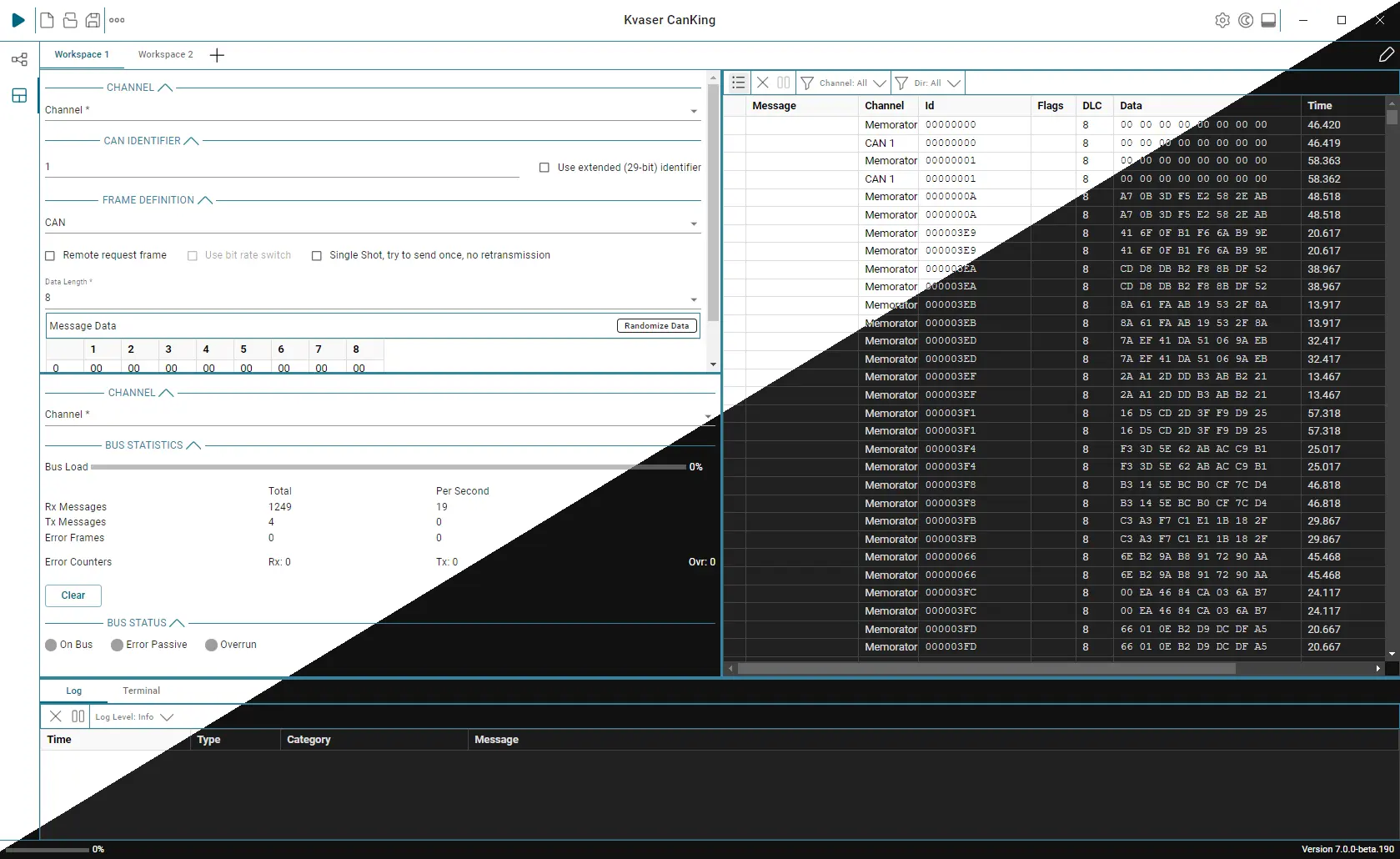
Dark Mode
CanKing now supports dark mode, featuring the ability to change between dark and light modes at any time with the press of a button.
Local and remote monitoring
CanKing 7.6 supports local and remote connections for CAN and LIN bus monitoring. Choose the connection that fits your test setup and where you work.
A local connection uses Kvaser PC interfaces connected directly to your computer with CanKing installed, letting you monitor and analyze traffic at the test bench. This gives you direct access to bus data during development and testing.
A remote connection provides live CAN and LIN traffic over Ethernet through the CanKing service running on a separate test system. This lets you monitor test activity remotely using the CanKing GUI, while the interfaces remain connected to the test system.
CanKing Extensions
CanKing Extensions expand the possibilities of CanKing. An extension could be a start/stop button, a special filter or interpreter. It could also be a view that displays signal values in a table, or plots them over time, or a dashboard with dials and digital displays to monitor the CAN traffic. CanKing Extensions put you in the driving seat, allowing you to add the functionality you need to CanKing, without having to write a full application.
Learn more about CanKing Extensions.
Command Line Interface
The CanKing 7 Command Line Interface (CLI) allows users to control CanKing and perform many actions directly from the terminal. The CLI controls CanKing’s background service without using the graphic user interface (GUI). There are commands for configuring the measurement setup and for starting and stopping measurements. One use case could be to start/stop a measurement when some external event happens that CanKing isn’t aware of.
E-Learning
Kvaser’s e-learning courses offer an efficient way to enhance your skills and deepen your understanding of CAN bus technology at your own pace, with the flexibility to learn anytime and anywhere. Through interactive content and practical examples, you can quickly apply your knowledge. Our latest course covers CanKing 7, a free and versatile CAN bus analysis tool. Explore its features and learn how to make the most of this powerful software, all while advancing your expertise in the field
Download CanKing 7 Datasheet
Access the CanKing 7 datasheet for key features and product insight
 Download
Related Articles


 1...2...3...