


What is CanKing Remote?
CanKing is Kvaser’s free CAN and LIN bus analysis software that is compatible with all Kvaser CAN interfaces, Kvaser LIN interfaces, Kvaser Hybrid CAN/LIN interfaces, and the Kvaser virtual CAN bus. Using CanKing , you can view messages on the bus in real time, send your own messages, and decode raw data into readable signals using database files.
Normally, that means working with a Kvaser CAN interface connected to the same computer. But what if the CAN interface is somewhere else, such as on a test bench, in a lab or connected to a vehicle?
CanKing Remote lets you access those CAN interfaces over a network. Instead of moving your computer to the CAN hardware, you can monitor and interact with the bus from another machine. This can be useful for remote testing, diagnostics and development, or simply when the CAN connection is somewhere that is inconvenient to access directly.
CanKing consists of three parts: CanKingService, a background service that talks to the Kvaser CAN interfaces; a graphical application for interactive use, which includes a built-in terminal; and the ck command-line tool for scripting and automation.
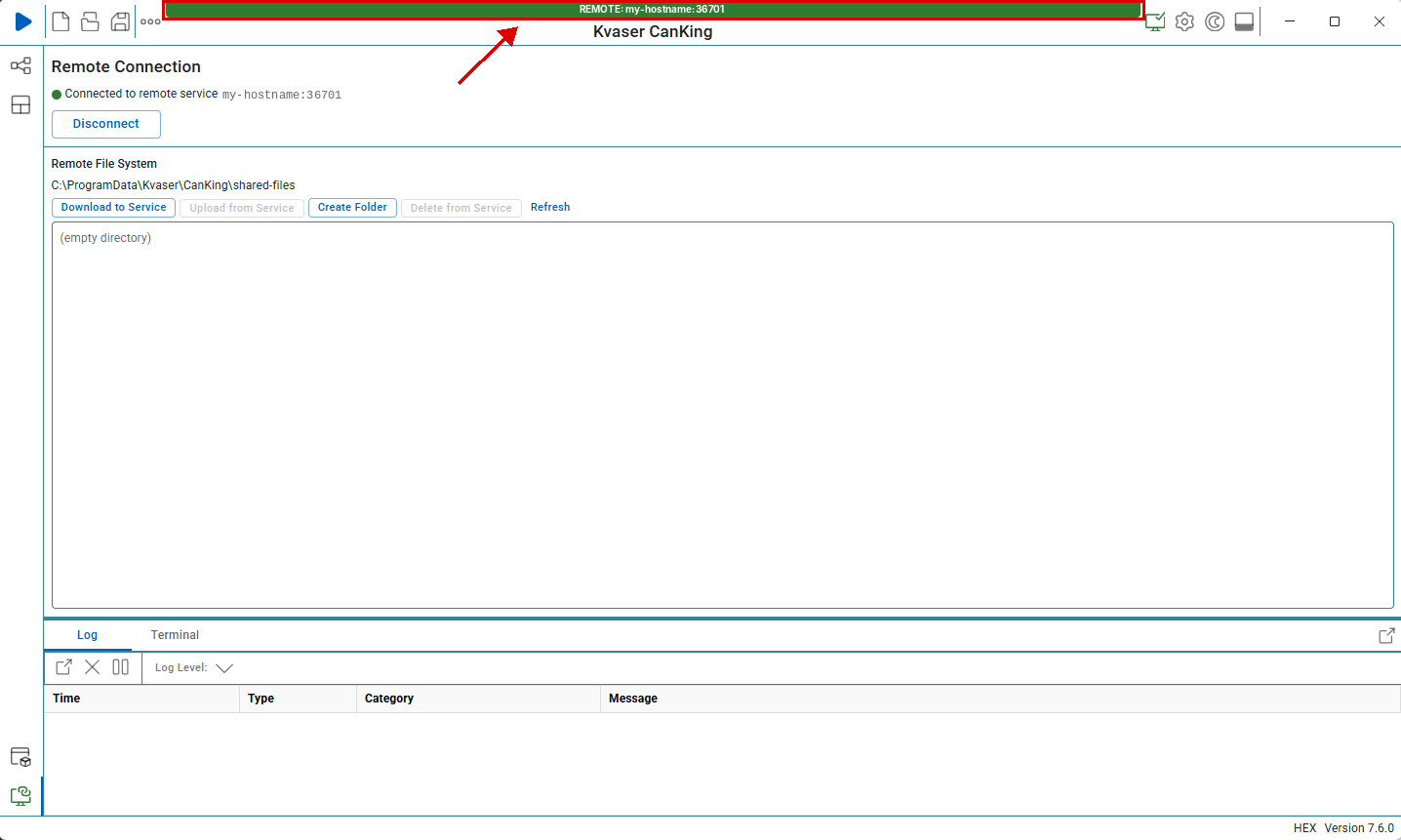
In this article we will explore how to set up remote access to the CanKingService, so that other devices can reach the CAN interfaces connected to that machine over the network. With either the CanKing GUI or the ck command-line tool, you can work with CAN buses on a test bench, in a lab or in a vehicle, right from your desk. This guide is based on the Remote Access documentation supplied with CanKing. For the latest CanKing downloads and information, visit the CanKing 7 page.
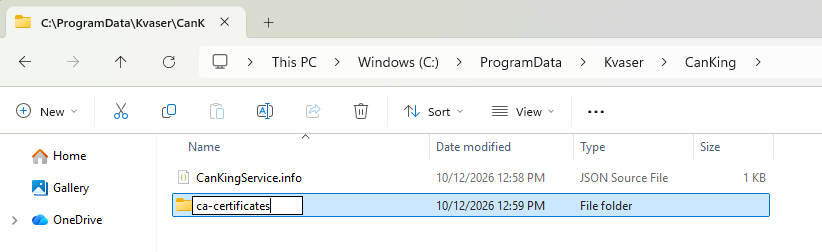
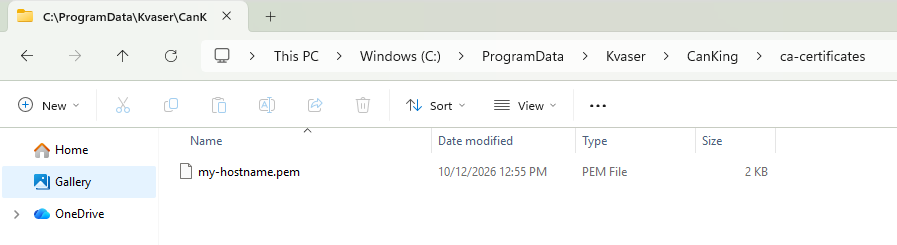
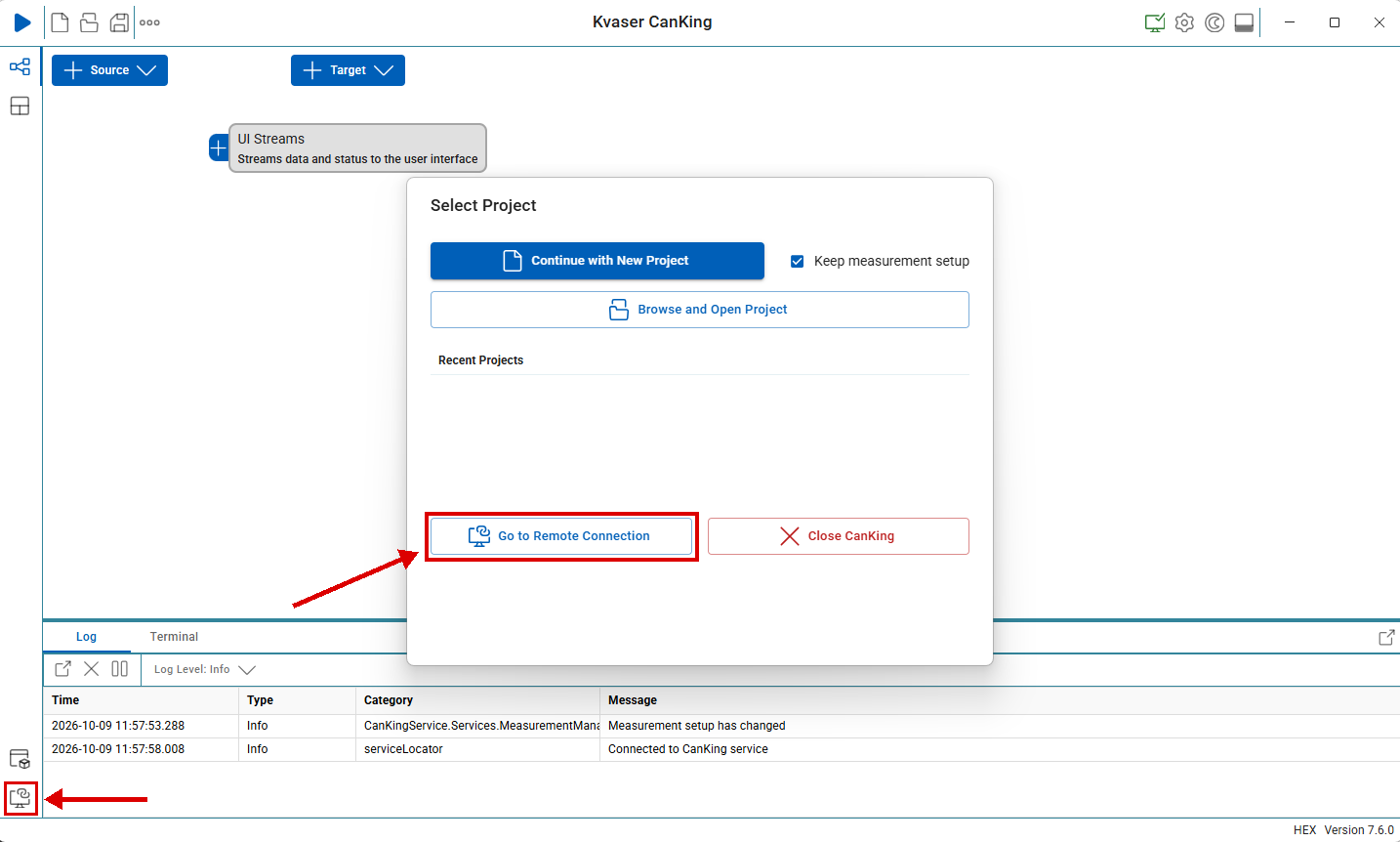
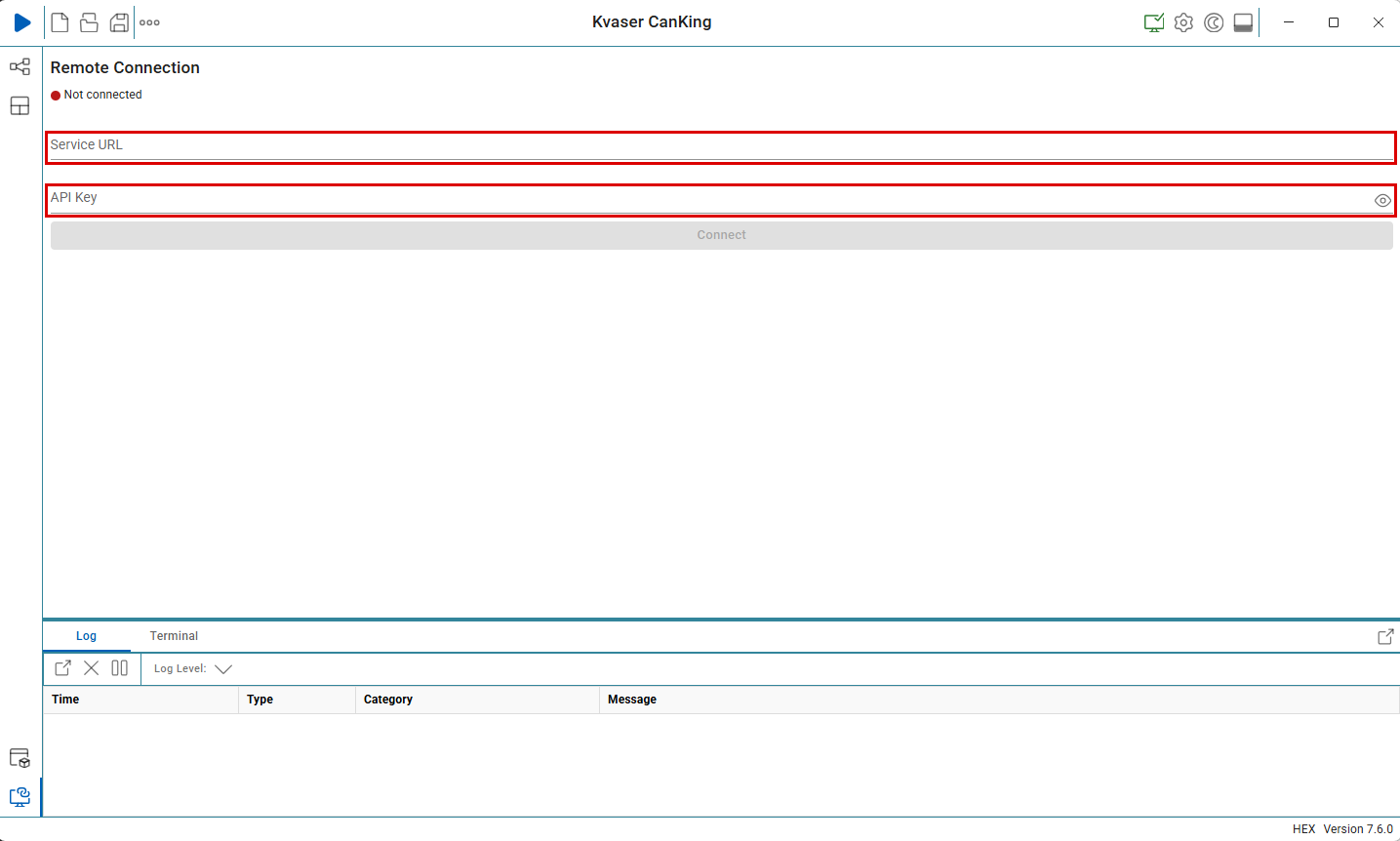


 1...2...3...