





Replaying Captured Data
This module assumes readers have previous knowledge of the basic navigation and setup of devices in CanKing 7. Should additional aid in connecting Kvaser devices to CanKing be required, please refer to previous lessons such as Basic Navigation and Adding a Source for more information on the fundamentals of CanKing 7.
Products Used
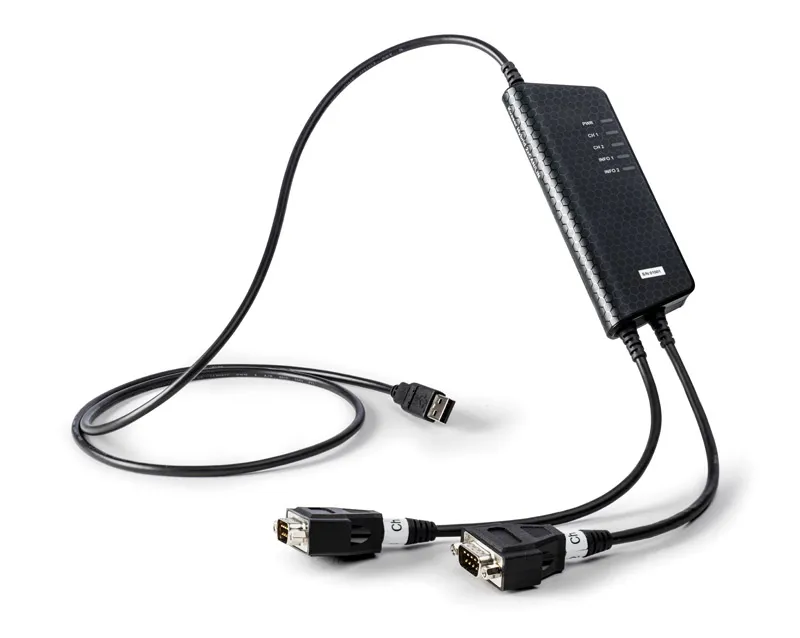

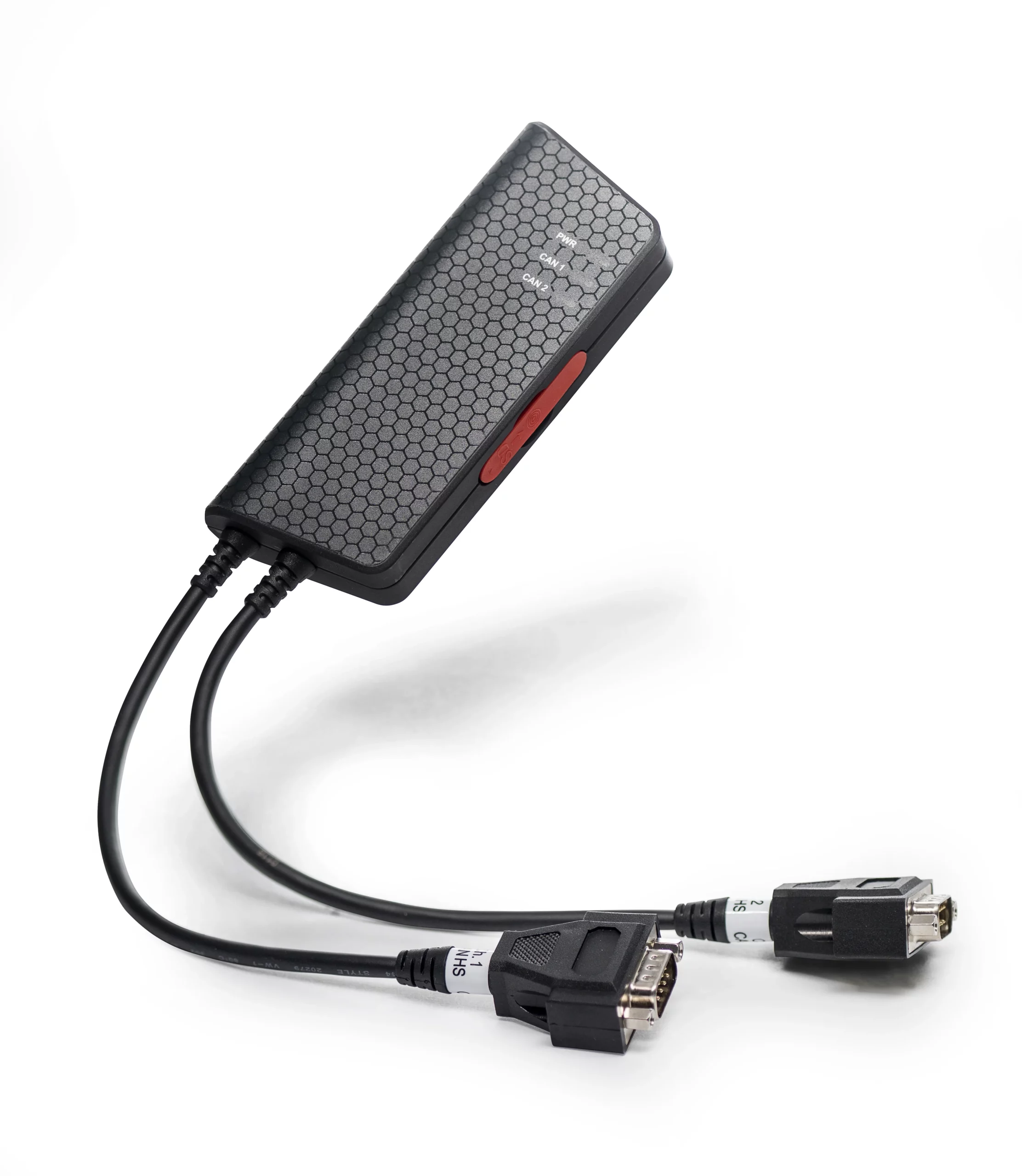
Sometimes you just need to be able to recreate a scenario. In this example, we’ll look at ways to replay logged data in CanKing 7. For this demonstration, we will be using a Memorator Pro 2xHS v2 as our interface as the Memorator Pro is a data logging powerhouse, making this logger a perfect fit for this type of example.
The first step is to log data. If you don’t already have a log file you want to use, there are a few ways to log data. The first is connecting a Kvaser interface to the PC and logging data from your bus using CanKing 7’s Message Logger Target feature in the Measurement tab. Another option is, since Memorators are standalone logging devices, we could configure the Memorator to log data then connect the device to a bus to collect data. This can be a great addition to troubleshooting steps like test drives and other situations where you’re attempting to recreate the issue you’re trying to solve as it doesn’t require a second person with a laptop in the car or messy cables running out of a system to a local computer. Check these resources if you’re not sure how to set up a Memorator for remote logging, or are unsure how to log to the Message Logger target option in CanKing 7.
With our log file, we now have several options for how we want to replay our log with Log Replay. Found in the Source dropdown menu of the Measurement tab, Log Replay gives you a few options for replaying a log file back. This can allow you to effectively replay that moment in time across the bus with controls to alter message speed, alter variance for time between messages, and offset when the log begins replaying. For our example log file, we have a log of our RPM rising, and then falling. (Show clip of log being replayed to show RPM value rising and falling cyclically) We’ve set the File Iterations to -1 for our Log Replay so that this log loops so long as we are actively measuring the bus.
With the proper DBC file added to the measurement tab, we can even see the details of the message data being altered in real time and inject new data during the replay using CAN Send’s Message Selection feature, allowing us to further alter the values being replayed in real time. Features like this help recreate the conditions for outlier scenarios and unique circumstances which can shine a light on trickier issues that can be hard to diagnose.
 1...2...3...