

Developer Blog

30/03/2026 by Logan Via

Signal Plotting with CanKing 7 Extensions

In this guide, we introduce the Signal Plot extension to CanKing 7 – Kvaser’s free CAN and LIN bus analysis software which is compatible to all Kvaser hardware interfaces.

The Signal Plot extension is a simple yet powerful add‑on that allows you to plot CAN and LIN signals in real time for fast and lightweight visualization of system behavior. Whether you’re calibrating a routine or tracking RPMs, a signal plotter can be an essential part of your workflow.

Please note: The example below requires no additional hardware and can be recreated by anyone with a .dbc file. Simply download CanKing 7 for free, minimum version 7.4, as well as the Signal Plot extension, and follow the steps below.

For more information of how to use CanKing 7, see the user guide found in the Help menu inside the CanKing 7 application.
Installing an extension

The free CanKing 7 can be expanded with custom extensions that add new capabilities through the CanKing 7 API. With an OS agnostic format, extension files are supported across all operating systems supported by CanKing 7. Extension files are denoted by .ckent and can be installed by either double-clicking the extension file or through the CanKing 7 app.

To install an extension through the app:

  1. Click the More menu (…)
  2. Select Extensions → Install.
  3. Browse to the .ckent extension file.
  4. Select Install.

To uninstall an extension, navigate once more to the Extensions menu and hover over the Uninstall option. A list of installed extensions will then appear from which the extension to be uninstalled can be selected.

Since extensions are installed into CanKing 7, a copy of CanKing 7 must be installed before attempting to install an extension.

Setting up the environment

With the Signal Plot extension installed, let’s set up a quick CAN example to explore the features of CanKing 7 signal plotting. First, we need to set up a measurement.

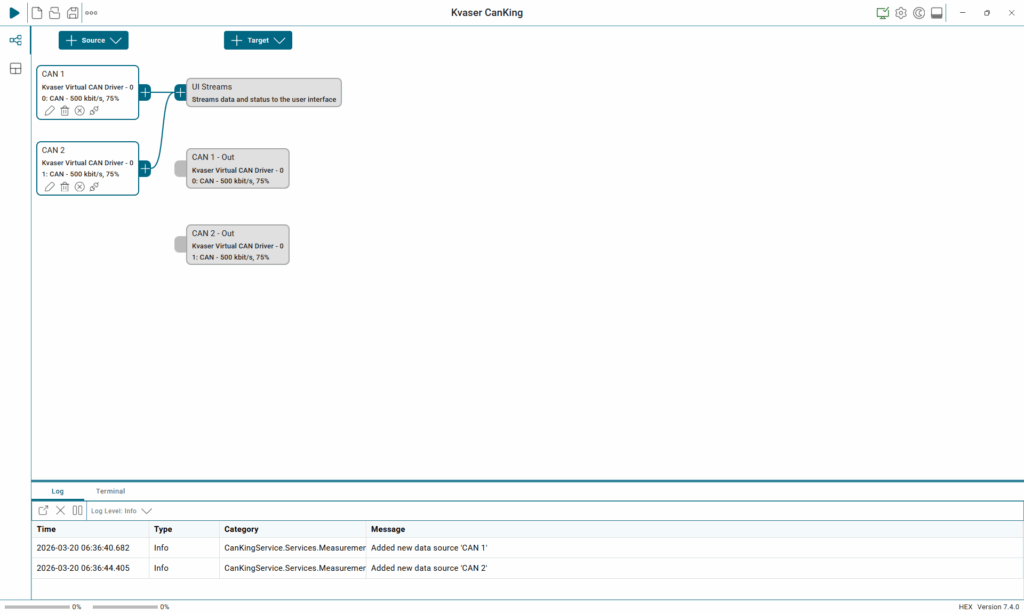
Start by creating two virtual CAN channels:

  1. Open the Add a Source dropdown menu.
  2. Select CAN Channel.
  3. Add two channels and name them CAN 1 and CAN 2.

Next, click the ‘+’ icon next to CAN 1 to add a database. Use the wizard to select the .dbc file of your choice.

In the Sources tab:

  1. Ensure CAN 1 and CAN 2 are both selected.
  2. Ender Add a Source, choose Traffic Generator.
  3. Use Select Message to pick a message from your database.

Make sure ‘Random message data’ is checked so that each message contains varying values. For this example, we’ve created two different traffic generators; one per CAN channel.

Prepare the Workspace

With the measurement set up, it’s time to switch to the Workspaces tab. Since this example uses two separate traffic generators, let’s assume that we also wish to track these two sets of incoming data separately as well.

  1. Click the arrow at the bottom of the Workspace page to split the workspace horizontally.
  2. In each pane, click Select View → Signal Plot to add a plotter in both frames.

Now that the plotters are in place, we can configure them.

Add signals to the plotter

Click the + Signals button in each plotter. You’ll see a list that’s similar to the message selector used earlier, but here CanKing displays the individual signal values available within each message.

  1. Check the signals you want to display in the plotter.
  2. Use the search bar at the top to filter large lists quickly.
  3. When you’re finished, click Save.

Calibrating the signal plotter

The example is now ready to be run. Let’s click the play button in the top-left of the application to begin a measurement and plot some signal values. If everything has been set correctly, the signal plotter should begin to display values from the current measurement as they are received. Once the measurement is stopped, the values plotted will remain.

However, if a measurement is started again, the previous graph will be replaced by the new measurement. Collect a measurement and then let’s look at some of the signal plotter’s settings.

Customizing the graph

Much of the graph can be altered to one’s preferences:

  • Colors: click a signal’s color box to choose a new color.
  • Markers: enable point markers to show each sample on the curve. This can be particularly helpful when tracking multiple values without a common y axis.
  • Line thickness: adjust for visibility.
  • Left / Right Y‑axis: choose where each signal’s scale appears — useful when plotting values with different ranges.

Common Y‑axis: toggle a unified scale that spans all signals when needed.

View‑level settings

At the top of the Signal Plot view, you’ll find options that apply to the entire plot:

  • Time window: sets how much time the graph displays.
  • Scan vs. Scroll:
    • Scan shifts the graph forward at the edge.
    • Scroll smoothly pans the graph as new data arrives.
  • Advance: in Scan mode, controls how much of the graph updates per shift.
  • Pause plotting: the Play/Pause button lets you freeze the active plot without stopping the measurement itself.
  • Expand view: the button at the far-right fits all received data to the full window for a detailed review.

This Signal Plot extension adds a host of new ways to visualize and analyze data within CanKing 7. For more information on extensions, such as creating your own extensions using the CanKing 7 API or enabling custom tools and workflows tailored to your development environment, please see the Extensions page or contact us at [email protected].

Author Image

Kvaser Marketing